Association of Women’s Health, Obstetric and Neonatal Nurses

Association of Women’s Health, Obstetric and Neonatal Nurses

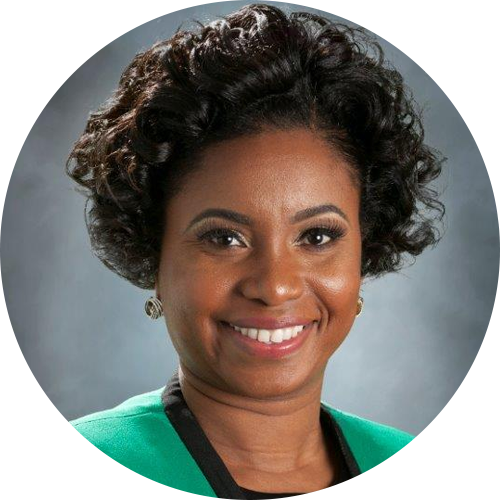
Shakira Henderson, PhD, DNP, MS, MPH, EMBA, RNC-NIC, IBCLC
Past-President
Shakira Henderson has been a longtime volunteer with AWOHNN at the local, regional, and national level.
Dr. Shakira Henderson is a hospital-based nurse researcher, health educator, and certified neonatal nurse. Currently, she is the Vice President, Research Officer/Clinical Research Integration Officer for UNC Health and UNC School of Medicine. She holds dual doctoral degrees, PhD and DNP, master’s degrees in public health, anatomical sciences, and advanced neonatal nursing practice with a sub-specialization in nursing education. She has been awarded two national AWHONN awards – leadership and practice.
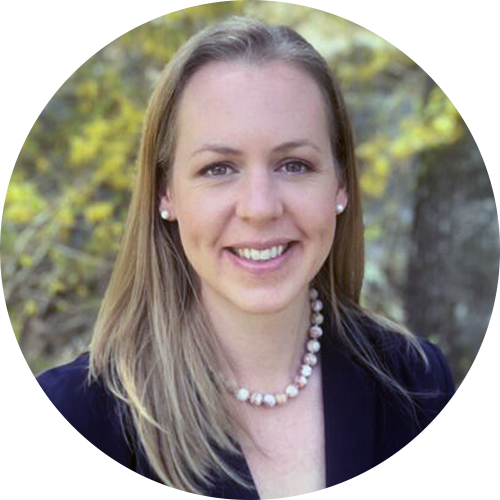
Amber Weiseth, DNP, MSN, RNC-OB
Director
Amber Weiseth is a Research Scientist at Harvard T.H. Chan School of Public Health and the Director for the Delivery Decisions Initiative at Ariadne Labs. In this role, she leads a research and advocacy portfolio focused on improving dignity and safety in childbirth and reducing racial and ethnic disparities.
Amber has been an obstetric nurse for 20 years, specializing in maternal-child health, quality improvement, and systems innovation.
Prior to joining Ariadne Labs, Amber served as Assistant Director for Maternal-Infant Health Initiatives at the Washington State Hospital Association where she led safety and quality improvement in the state’s birthing hospitals.
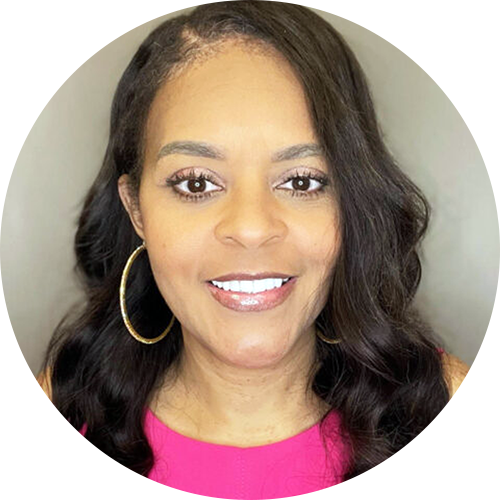
Shellie R. Nelson, PhD, RNC-OB
Director
Shellie Nelson has recently completed her her PhD in Nursing Science.
Shellie Nelson, RN, MS has faithfully given her time to Women’s Services as a nurse, charge nurse, manager and director. Her clinical experience includes an outstanding academic background which includes; a BBA in accounting from Prairie View A&M University, a BSN in nursing from Avila University, and a Master’s of Science in Health Systems Management from Texas Woman’s University. Shellie is currently in her final stages of studies for her PhD in Nursing Science.
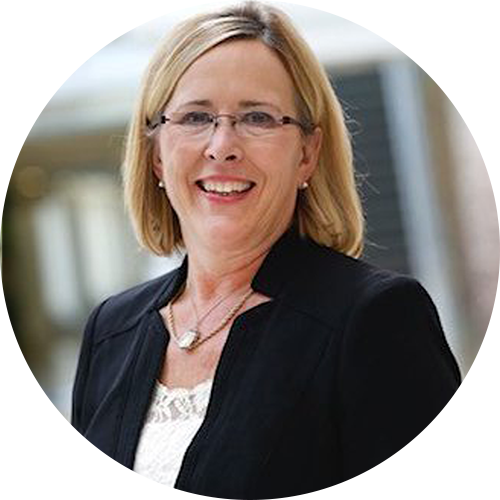
Elizabeth A. McIntire, MSN, RN, WHNP-BC, C-EFM
Director
Beth McIntire earned her BSN from DePauw University and her MSN-WHNP from Indiana University. She has 39 years of inpatient perinatal and women’s health nursing. Outpatient experience consists of maternal fetal medicine and general OB/GYN practices.
Her achievements include developing the largest maternal transport program in Indiana and being a finalist in the Indianapolis Business Journal Health Care Hero Award. She has lectured extensively on fetal heart rate monitoring, perinatal safety, high-risk obstetrics, and maternal transport. Beth is the IU Health Ball Service Line Leader with strategic and operational oversight of level III perinatal service.
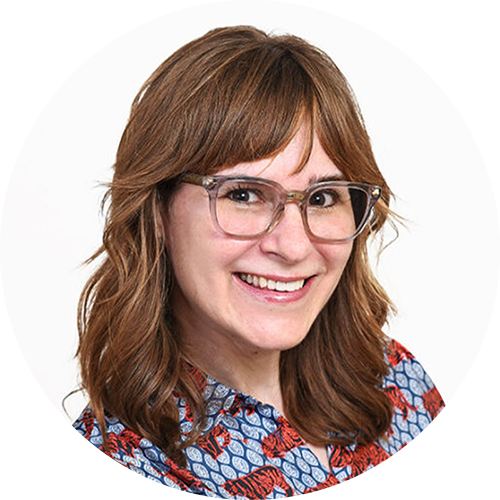
Mary Dawn Koenig, FACNM, PhD, RN
Director
Mary Dawn Koenig is an Associate Professor at the University of Illinois Chicago College of Nursing. Born in Canada, she received her BScN from McMaster University, her MSN with a specialty in midwifery from Yale University, and her PhD in nursing from the University of Pennsylvania.
The overarching aim of her research is to improve maternal and child health outcomes, specifically by studying how these outcomes are affected by the bidirectional relationship between nutritional status and the development and function of the body’s immune and inflammatory response. She approaches this through several lines of inquiry: 1) evaluating the effect of inflammation on nutritional status; 2) investigating inflammatory mechanisms that lead to poor outcomes; and 3) mitigating the negative effects of inflammation. Dr. Koenig has been active in the care of pregnant people for over 27 years. She has been an active member in AWHONN during this time, serving as an abstract reviewer and corresponding and panel member of the Research Advisory Panel. She volunteered as a community advisory board member for the March of Dimes. Dr. Koenig works with the community organization NewMoms where she provides programming related to nutrition, meal planning, and stress reduction techniques.
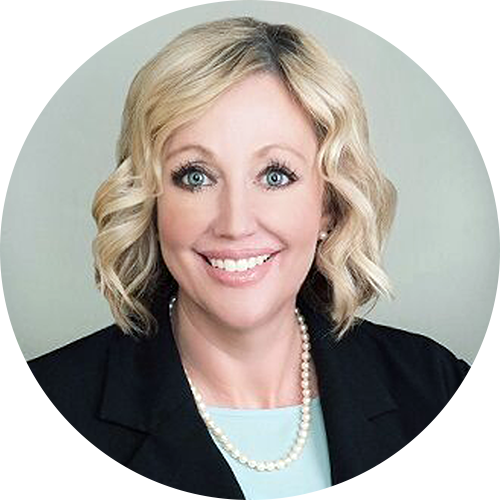
Debbie Ketchum, DNP, MAOM, RN, NEA-BC, RNC-MNN, C-EFM
Director
Debbie Ketchum is a wife and mother to two children. Currently a Doctor of Nursing practice leader as a director of nursing practice across the continuum of care including women’s and children’s for St. Luke’s Health System.
A nurse of 28 years starting as a commissioned officer with the U.S. Army and has worked at large academic, rural settings and ambulatory primarily focusing on obstetrics, the care of women and children, and leadership.
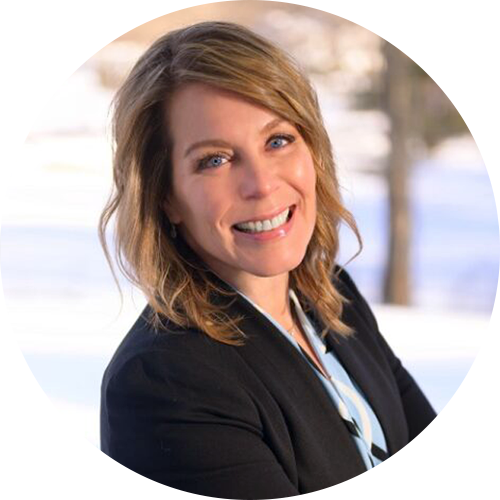
Elizabeth Kester, MSN, RN, NEA-BC
Director
Elizabeth Kester is a nurse leader and passionate advocate for women’s rights and patient-centric and empowered birth experiences.
Elizabeth is the Vice President, Clinical Services at Pomelo Care, a virtual maternity care program delivering 24/7 personalized care via telemedicine to improve pregnancy outcomes and reduce disparities. Elizabeth also serves as the Marketing Director for March for Moms, a national advocacy organization that promotes policies to ensure that every family can grow with dignity and support. In this role, she has partnered with many professional societies, leading maternal health organizations, and industry partners to advocate in Washington, D.C.
Elizabeth holds an advanced degree in communications, specializing in marketing and design, having enjoyed a successful career in advertising before she transitioned to women’s health nursing. Elizabeth has experience delivering care in maternity services in vastly different settings, from rural critical access hospitals to large academic medical centers and now virtually. She resides in southern New Hampshire and Harwich, Massachusetts, with her husband and two children.
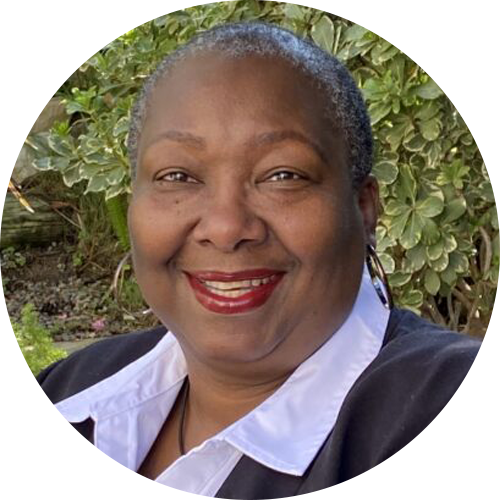
Katrina J. Johnson, MSN/Ed, RN
Director
Katrina Johnson has served in the roles of nurse manager, assistant nurse manager/educator and simulation coordinator in women’s and perinatal health. She has been an AWHONN member for over 15+ years.
Katrina is a passionate, committed patient advocate of women and newborns by supporting them through equitable, culturally sensitive care. She actively promotes healthcare equity and best practices to improve the outcomes of underrepresented mothers and their newborns through education and advocacy.
Katrina has served in the roles of nurse manager, assistant nurse manager/educator and simulation coordinator in women’s and perinatal health. She has been an AWHONN member for over 15+ years. Katrina is currently an adjunct professor at West Coast University, an AWHONN intermediate and advanced fetal monitoring instructor/mentor, Neonatal Resuscitation, BLS instructor and TeamSTEPPS master trainer.
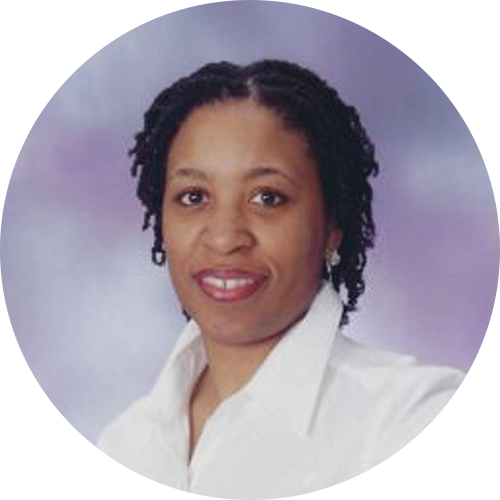
Veritta Henderson, PhD, FACCE, C-EFM
Director
Veritta Henderson is the Director of Northside Hospital Gwinnett Women’s Pavilion in Lawrenceville, Georgia. She has been a perinatal nurse on Mother/Baby and Labor & Delivery units early in her career. She worked in Public Health and accepted a wide breadth of leadership positions over her 31 years as a women’s health nurse.
Dr. Henderson speaks on the local, state, and national levels about perinatal nursing, and is a researcher and published author on the topic of perinatal preceptorship. She is passionate about maternal morbidity and mortality, perinatal disparities, and the education of nurses. Veritta has been active in her GA chapter of AWHONN and worked as the Newsletter Editor and Membership Coordinator for her chapter. She has been a member of AWHONN for many years and was the Chair for the AWHONN VTE in Pregnancy Advisory Board in 2018, helping co-write the practice brief. Veritta is a journal peer reviewer, a college professor, an advocate for the patient and the healthcare team that cares for women and newborns. Dr. Henderson has a PhD in Nursing from Walden University, a MSN from Gonzaga University, and a BSN from University of Texas Health Science Center at San Antonio
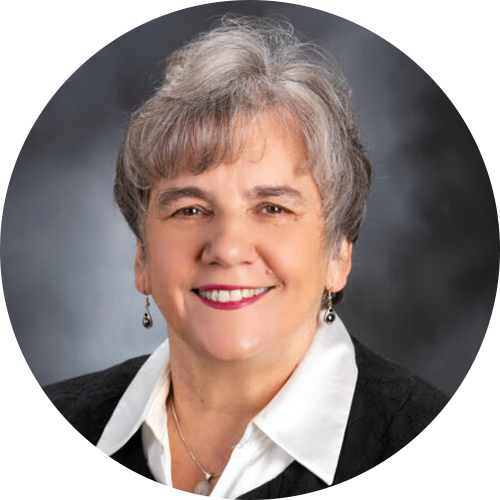
Julie Zimmerman MSN, RNC-OB, C-EFM
Secretary-Treasurer
Julie Zimmerman is a staff nurse at UnityPoint – St. Luke’s Hospital Birth Care Center in Cedar Rapids, IA.
Julie has a BSN and MSN in Women’s Health from the University of Iowa College of Nursing. For over 40 years, she has been a staff nurse at UnityPoint – St. Luke’s Hospital Birth Care Center in Cedar Rapids, IA. Julie also serves as nurse residency program facilitator. She teaches EFM and POEP AWHONN programs and was previously an educational outreach coordinator.
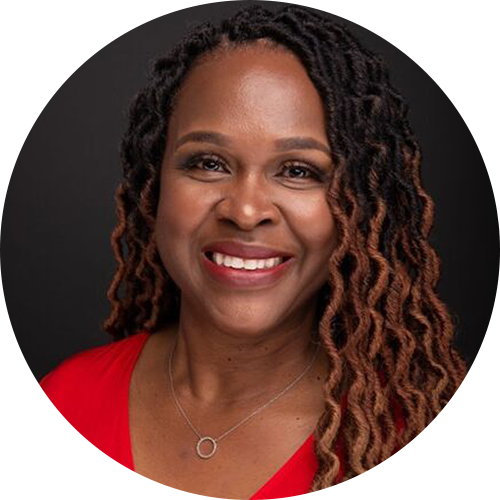
Rose L. Horton, FAAN, NEA-BC, RNC-OB
President-Elect
Rose Horton is the Specialty Director Emory Decatur Hospital in Decatur, Georgia.
Rose L. Horton, MSM, RNC-OB, NEA-BC, FAAN Joined AWHONN in 1999, served on Nominating Committee (twice), DEI Taskforce, BOD, President, RMC Toolkit Team lead, Synova Associates Executive Nurse Leader Advisory, Count the Kicks Executive Board Regis University, MSM, BSN.
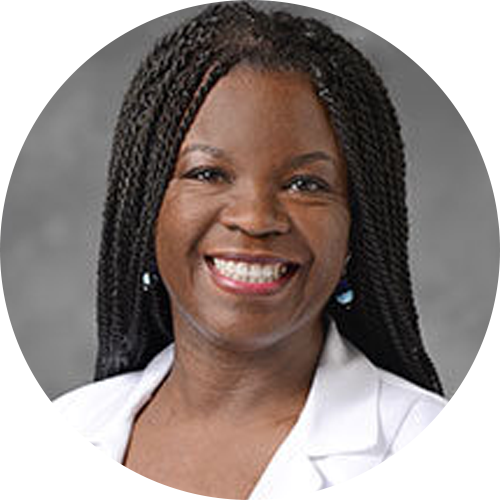
Cheryl Bellamy, DNP, APRN, CNM, CNS-C, C-EFM
President
Cheryl Bellamy is a Perinatal Clinical Nurse Specialist at Henry Ford Hospital in Detroit Michigan. She has over 20 years of experience in obstetrics with focus in the clinical areas of Labor and Delivery, Postpartum, High Risk Antepartum, Normal Newborn, and Women’s Health. Cheryl trained as a certified nurse midwife and is regularly invited to present on a host of clinical topics related to the care of women and newborns.
Cheryl’s 15+ years of AWHONN leadership experience includes: National Board of Directors; Michigan & Detroit Chapter Leader; Chair-National Awards of Excellence Committee; 2012 Emerging Leader; Maternal Morbidity/Mortality Task Force, and the DEI Committee; Past Member-Public Policy Committee; Writing Teams-Racism and Bias in Maternity Setting Position Statement, and Standards and Guidelines of Professional Nursing Practice; Designated Instructor-Intermediate & Advanced Fetal Monitoring Courses; Author- Fetal Heart Monitoring Principles and Practice (2-chapters).
Cheryl served as Co-chair-Michigan Safe Sleep Action Committee; Advisory Board-Michigan Obstetrics Initiative; Facilitator-Unconscious Bias & Respectful Maternity Care (local/state); Member-SE Michigan Perinatal Quality Improvement Collaborative; and Primary Investigator-Impact of Nursing Labor Support on Reducing Cesareans.
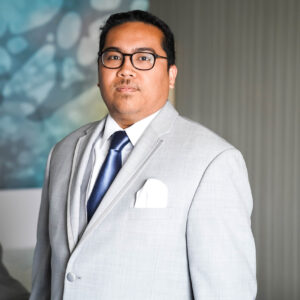
Albert Jimenez
Outsourced Chief Financial Officer
Albert brings over 15 years of public accounting experience in the financial services industry. He works for Marcum, LLP in the nonprofit industry and social sector.
He joined the firm (as Raffa) in 2008 as a Staff accountant and has since been promoted to Director. Prior to joining Marcum, Albert was a senior auditor for Ernst & Young in the Philippines.
Albert also oversees project teams on various client assignments. Albert has performed a myriad of accounting functions for organizations such as the Wallace Global Fund, Gavi Alliance, Salzburg Global Seminar, Distributive Education Clubs of America and Colorectal Cancer Alliance.
Albert is a licensed CPA in the state of Virginia and the District of Columbia and holds a Bachelor of Commerce in Accountancy from the University of Santo Tomas in the Philippines.

Benjamin Scheich, MS
Vice President, Analytics, Operations, Policy and Strategic Initiatives
Ben joined AWHONN in 2008 and is responsible for managing the Analytics, Education Operations, Policy and Strategic Initiatives for the association.
Ben’s focus is on using data and analytics to better understand AWHONN member needs and develop resources to meet those needs. Ben is passionate about process improvement and creating automated, just-in-time analytics resources to manage product metrics.
Ben has a Master’s Degree in Biostatistics from Georgetown University and a Bachelor’s Degree in Commerce from the University of Virginia. He has published numerous peer-reviewed articles and enjoys speaking about analytics in associations.
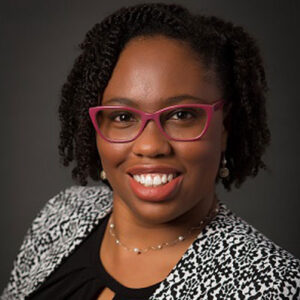
Danielle Jones, PhD, MPH
Vice President of Accountability, Belonging, and Culture
Danielle joined AWHONN in 2022 as the organization’s first Vice President of Accountability, Belonging, and Culture.
She previously served as director of the American Academy of Family Physicians’ Center for Diversity and Health Equity (CDHE). In this role, she operationalized the strategic priorities of the AAFP’s Board of Directors and executive leadership on issues of workforce diversity, health in all policies, medical education and practice tools that advance equity.
Prior to joining the AAFP in 2017, Danielle served as Director of Maternal Child Health for March of Dimes Kansas and a Fellow with the Army Public Health Center at Fort Leavenworth KS advising the Senior Commander of the Combined Arms Center. Both roles involved the development and implementation of equity focused health promotion strategies to reduce disparities in maternal mortality, preterm birth, substance use and suicide by addressing the social determinants of health, policy, systems and infrastructure.
Danielle completed her doctoral degree from the University of Kansas School of Medicine in Health Policy and Management where her research on unconscious bias has led to the development of evidence-based curriculum and training for faculty. She also earned a Master’s of Public Health from the University of West Florida and a Bachelor’s of Science in Biology from the University of Missouri Kansas City.
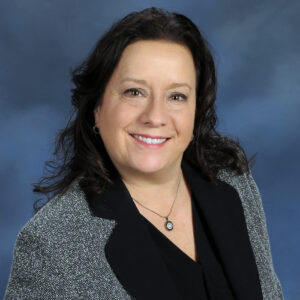
Karen Crowley, DNP, APRN-BC, WHNP, ANP, CNE
Vice President, Nursing, Education, Clinical Solutions and Research
Karen joined AWHONN in January 2021, bringing years of clinical experience as a registered nurse and advanced practice nurse, education experience as a certified nurse educator and extensive leadership experience.
In prior roles, she developed new educational programs and increased the rigor of current programs, including a women’s health nurse practitioner track. She led the development of the nurse practitioner Bachelor of Science in Nursing to Doctor of Nursing Practice (BSN-DNP) program and led the development and launch of the online graduate nursing programs. She is a certified nurse educator and has an earned certificate in online teaching.
Karen’s research interests include health promotion and disease prevention, empowering women in healthcare decisions and evidence-based clinical solutions. She also is an experienced advocate for the nursing profession and women’s health initiatives, such as a Gubernatorial appointment to Special Commission for an Act Relative to Post-Partum Depression.

Rick Burt, CAE
Vice President, Membership and Volunteer Engagement
Rick joined AWHONN in 2020 as Director of Membership Development. He serves as a member of the AWHONN executive team and leads the organization’s membership, customer service and volunteer development efforts.
Rick brings more than seventeen years of professional association management experience. He is an accomplished nonprofit professional, with a comprehensive background in leadership development and membership services, including previous work at the National Association of Home Builders (NAHB) and the Pi Kappa Alpha International Fraternity (PIKE). He is a 2016-2018 class of ASAE Diversity Executive Leadership Program (DELP) scholars. In 2018, Rick earned the American Society of Association Executives (ASAE) Certified Association Executive (CAE) credential and was recognized as one of Association Forum’s “Forty Under 40” professionals. He’s a long-time ASAE volunteer and currently serves on the CAE Exam Committee.
Originally from Georgia, Rick holds a Master’s Degree in Executive Leadership from Christian Brothers University in Memphis, Tennessee, and a Bachelor’s Degree in History from Georgia State University in Atlanta, Georgia.

Billie Robinson, MBA, CAE
Senior Vice President of Meetings & Expositions, Strategic Partnerships, Marketing & Publications
Billie joined the AWHONN staff team in 2008 to lead the Meetings and Exposition Services team. A highly respected association management professional, he brings more than 20 plus years of diverse association management and leadership experience to AWHONN.
In his current role as Senior Vice President of Meetings & Expositions, Strategic Partnerships, Marketing and Publications, Billie leads a dedicated team of professionals responsible for producing significant non-dues-revenue for the association while delivering stellar service to our more than 24,000 members, business partners, exhibitor, advertisers, and industry peers.
An accomplished association professional, Billie was designated a Certified Association Executive (CAE) by the American Society of Association Executives in 2002 and a Diversity Executive Leadership Scholar (DELP) in 2013, He has a bachelor’s degree in Business Management and a Master’s in Business Administration from the University of Maryland Global Campus.
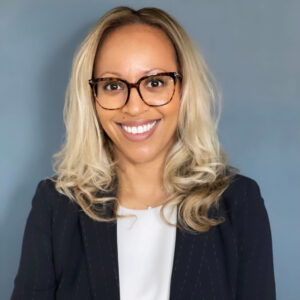
Nichole Goode
Vice President, Professional Services and Administration and Chief of Staff
Nichole joined AWHONN in 2020 and is responsible for all governance related activities, providing strategic support to the CEO and leads the Professional Services & Administration Department.
For the last twenty years, Nichole has served in administrator roles supporting c-suite executives in various non-profit associations in the Washington-metro area, including the American Nurses Association for 8 years prior to joining AWHONN. Nichole brings to AWHONN extensive experience in board governance, project management, strategy and implementation, culture transformation, operations and personnel management.
Nichole is a native Washingtonian, a second-degree Reiki practitioner and is passionate about women’s health, nurses and holistic wellness.

Jonathan Webb, MPH, MBA
Chief Executive Officer
Jonathan joined AWHONN in April 2021 as their new chief executive officer. Jonathan has spent more than 15 years in the public health space promoting community health outcomes; addressing the social determinants of health; and tackling a number of epidemics including childhood obesity, diabetes, and CVD.
Jonathan’s professional experience includes work for two local health departments including work within the Office of Epidemiology of the City of Chicago and leading the Community Health Division of the City of Evanston. Additionally, Jonathan has spent more than nine years in the nonprofit space leading strategy; building meaningful partnerships; fundraising; and implementing programming for organizations such as the Association of Maternal and Child Health Programs (AMCHP), McGaw YMCA, Feed the Children, the American Osteopathic Association, and the American Diabetes Association.
Jonathan serves as Subject Matter Expert on the March of Dimes’ National Advisory Committee and the Co-Chair for the national strategy workgroup focused on Dismantling Racism and Addressing Unequal Treatment under the Mom and Baby Action Network as well as a Public Member of the American Board of Pediatrics Foundation.